The Create page
Prompts, reference images, batch generation, parameters and inpainting.
The Create page is for generating images directly. This chapter covers every feature of the prompt box.
Writing prompts
A prompt describes the image you want. A reliable structure is:
Image type + subject + setting + style + lighting and color + composition and ratio + on-image text
E-commerce hero image for a new rose serum, a clear glass bottle with a gold cap centered in frame, surrounded by rose petals and water droplets, refined texture, pink and rose gold palette, soft studio lighting, headline text “GLOW SERUM”
- Be specific: “a ginger short-haired cat sunbathing on a windowsill” gets closer to what you want than “a cat”.
- Quote on-image text: text that must appear in the image is rendered more accurately in quotes.
- Describe the style: use concrete traits such as “minimal, generous white space, low saturation” rather than brand names.
- Avoid conflicts: for example, asking for both “minimal” and “richly detailed”.
Reference images
Reference images keep a product, a person or a layout consistent across generations. Add them in any of these ways:
- Click the image button at the bottom left of the prompt box and choose files (multiple selection supported).
- Copy an image and paste it into the prompt box with Ctrl / ⌘ + V.
- Drag image files anywhere onto the page.
Type @ in the prompt to reference an image, which inserts a mention such as @Image 1 — for example, “place the cup from @Image 1 on the table in @Image 2”. The @ menu also lists your saved assets; choosing one adds all of its views.
Drag thumbnails to reorder them. Right-click a thumbnail to Insert reference or Save as asset.
Batch generation
Slots produce several variations in one submission, useful for comparing colors, styles or settings.
- Define a slot with
{name}in the prompt, for example “a {color} cat sitting in a {place}”. Names cannot contain spaces. - Click the slot chip and enter one value per line, for example “ginger”, “black”, “white”.
- Click Generate. Each combination is generated once, and the button shows the total, such as Generate 6 images.
Models and parameters
| Parameter | Description |
|---|---|
| Model | Models differ in style strengths and supported parameters; the default model suits most tasks. |
| Ratio / Size | Aspect ratio or exact resolution; see the next section. |
| Count | Images per run, 1–10. |
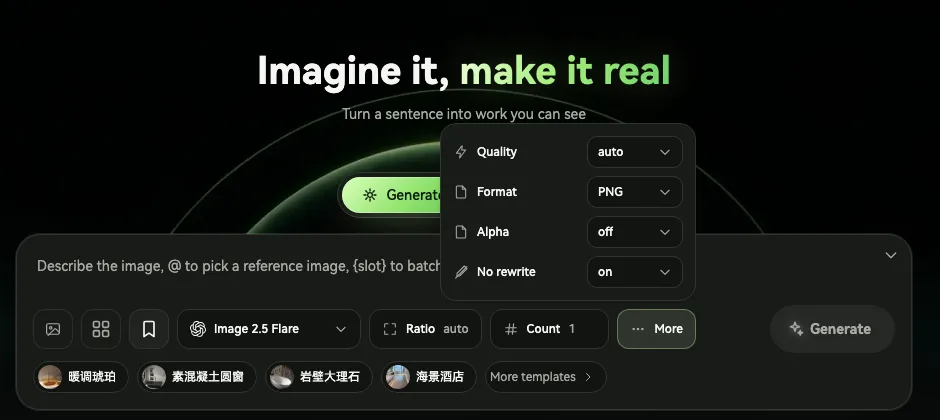
| Quality | auto / low / medium / high. Higher quality takes longer. |
| Format | PNG / JPEG / WebP. |
| Alpha | Available for PNG; generates a transparent background. |
| Compression | Available for JPEG and WebP; lower values produce smaller files. |
| No rewrite | On by default; prevents intermediate services from rewriting your prompt. |
Size and aspect ratio
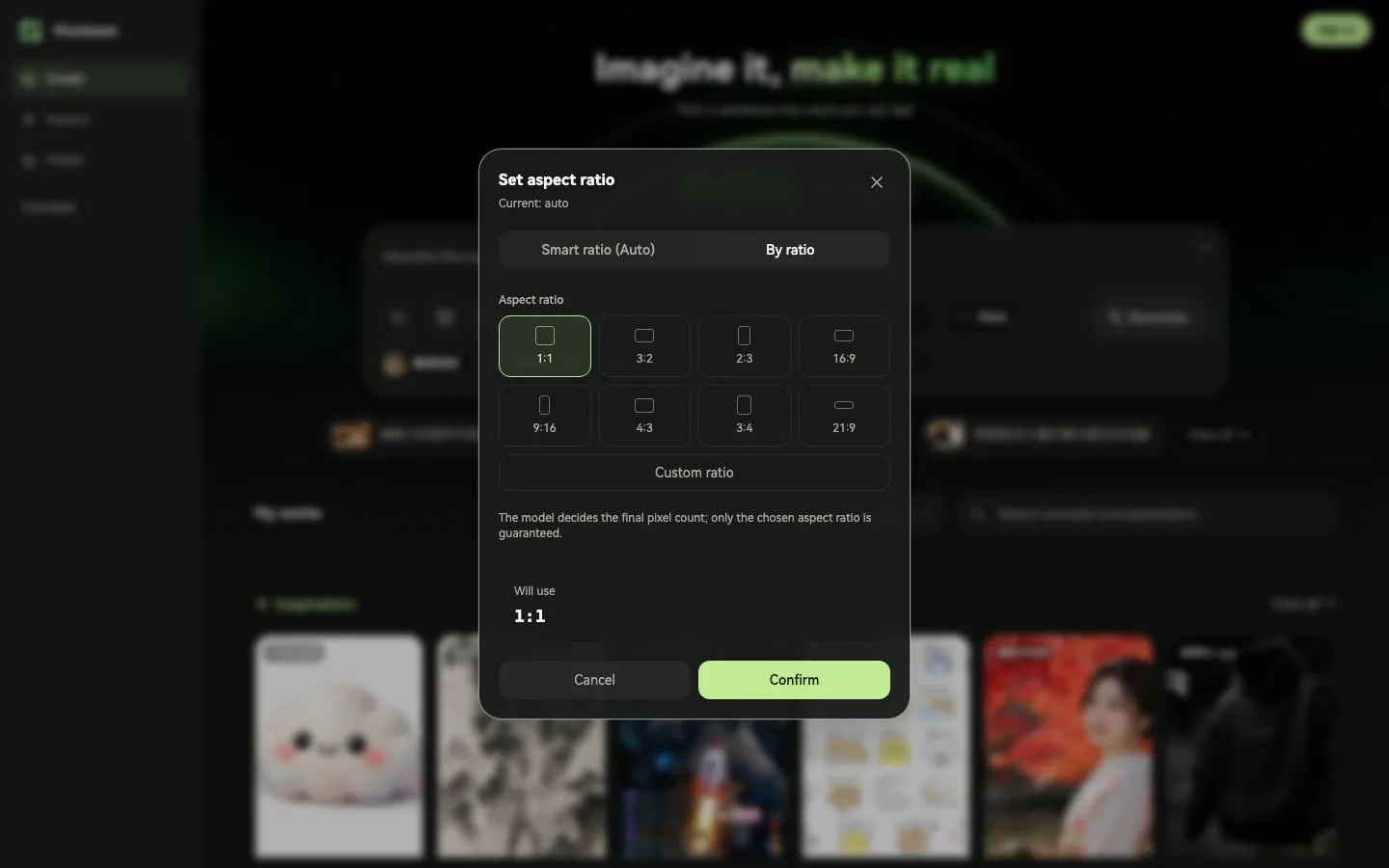
Click Ratio (or Size) to open the dialog. The available modes depend on the model:
- Smart ratio (Auto): the model chooses the size. Shown as Auto in size mode.
- By ratio: choose a common ratio such as 1:1, 3:4 or 16:9, or enter any value with Custom ratio. Models that support exact resolutions also offer a Base resolution of 1K, 2K or 4K.
- Custom size: enter width and height in pixels. Available only for models that support exact sizes.
| Use case | Recommended ratio |
|---|---|
| Product hero images, avatars | 1:1 |
| Social covers, posters, phone wallpapers | 3:4, 2:3, 9:16 |
| Article headers, web banners, video thumbnails | 16:9, 21:9 |
Inpainting
Inpainting changes only the area you paint, for tasks such as changing a color, removing an object or replacing an element.
- Click Inpaint on a work card, click the brush icon on a reference thumbnail, or right-click an image and choose Edit.
- In the editor, outline an area with Lasso or brush it with Paint; use Erase to refine the selection. The blue overlay marks the area to change.
- Click Save. The image moves to the first reference slot with a MASK badge, and the submit button changes to Edit mask.
- Describe the change in the prompt, for example “replace the cup with a pink ceramic mug”, then click Edit mask.
Reusing prompts and templates
| Type | How to save | How to use |
|---|---|---|
| Saved prompt | Click the bookmark button Save as template in the prompt box; referenced assets and parameters are saved with it. | Type / in the prompt box, or apply it from Assets → Prompts. |
| Template | Create one under Assets → Templates, or use a built-in template. | Click a template below the prompt box to switch model and size, then attach product assets with @. |
Managing works
- Filter: use Favorites only, the status filter (Completed, Generating, Failed) or keyword search.
- Bulk actions: hold Ctrl / ⌘ and click cards, or drag a selection box over empty space; on mobile, swipe a card sideways. Selected works can be favorited, downloaded or deleted together.
- Failures: open the details to see the cause. If content review rejected the prompt, click Edit the prompt to revise it; otherwise click Retry task.
- Background processing: jobs on built-in models run on the server and resume automatically after you close or refresh the page.