 Muvloom
User guideAssets
Contents
Chapter 05
Assets
Manage canvas projects, assets, saved prompts and templates.
Click Assets in the sidebar to open the Assets page, which has four tabs: Projects, Assets, Prompts and Templates.
Projects
All canvas projects in one place, with search, rename and delete. With cloud sync on, deleted projects go to the trash first and can be restored during the retention period.
Assets
An asset is a group of images of one subject, such as a product’s front, side and detail shots, or several photos of the same person. Saved assets can be added as references in one click.
- 1Click New asset and drag in one or more images of the same subject.
- 2Enter a name (up to 20 characters), choose Product or Person, and click Save.
- Alternatively, right-click a reference thumbnail and choose Save as asset, or drag images directly onto the Assets tab.
- To use an asset, click Add reference on its card, or type
@in the prompt box and select it.
Prompts
Prompts saved with Save as template, together with their referenced assets and parameters. Click Apply to load one into the prompt box, or type / in the prompt box to search.
Templates
A template captures a tuned look — lighting, setting and layout. Apply your product assets to a template to generate a batch of images in a consistent style.
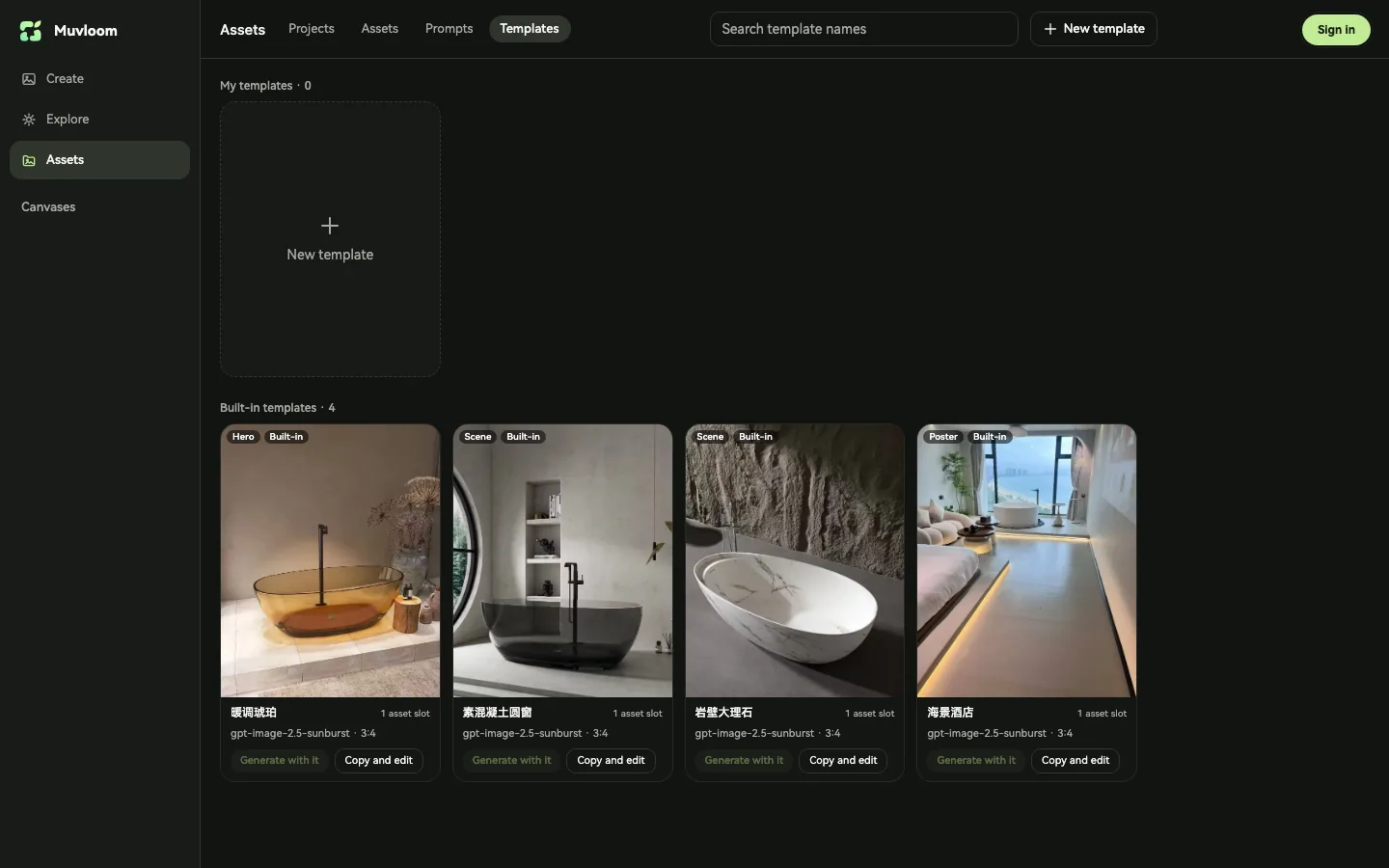
- Built-in templates: ready to use. To adjust one, click Copy and edit.
- New template: upload a reference poster or shot, name it and choose a purpose (hero, poster, scene or detail). The agent can also create one for you.
- Batch generation: click Generate with it, select Product or Person assets, set the images per asset and submit.